
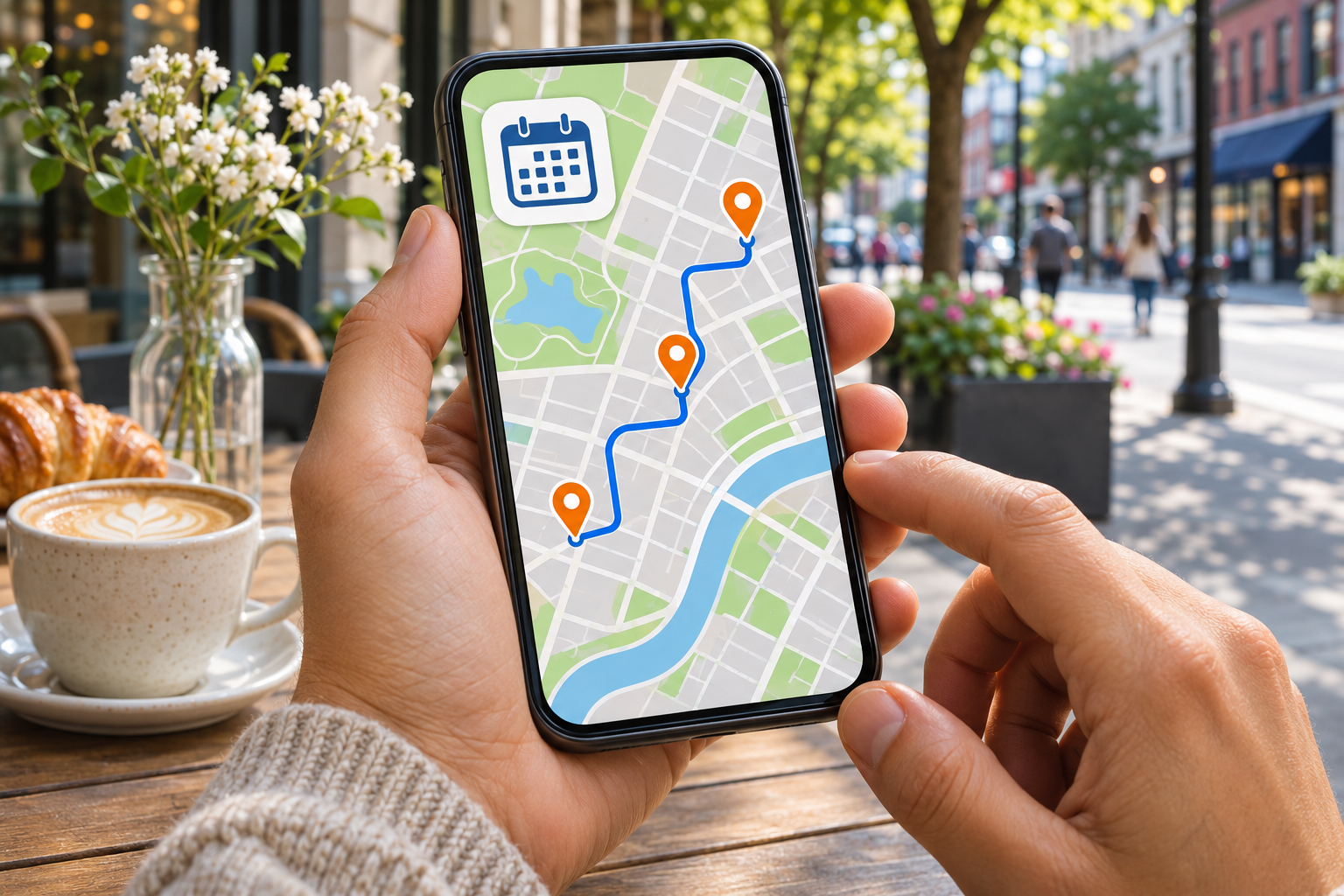
A familiar map can contain something more personal than directions: a record of earlier visits. If you enabled certain location-history features, your phone may help reconstruct a day you barely remember.
Before assuming there is a complete travel diary, check the setting. Google Maps Timeline is off by default, and different phones and services handle location records differently. Here is where the interesting details begin.
1. A location dot and a saved history are different things
Google describes Timeline as an optional account setting that saves visits and routes to a map on eligible signed-in devices. When enabled, it can regularly save a device’s precise location even while Google apps are not open.
Turning Timeline off stops new locations being saved to that Timeline. It does not automatically remove older entries or change separate services such as Location Sharing and Find Hub. A map showing where you are now does not, by itself, establish what history is being kept. Google’s Timeline account guide.
2. Google Maps users can inspect the record
In the Maps app, open your profile picture or initial and look for Your Timeline. Review the available dates and visits on that device. Google provides tools to correct or delete Timeline entries, so a saved visit should not be treated as an infallible account of a day.
Use the current instructions for your phone. Google notes that settings are changing gradually, and some controls may still appear under Web & App Activity. Its Android guide also identifies device and app-version limits. Open the current Maps guide.
3. Apple has a separate location system
On Apple devices, start with the Location Services controls rather than expecting Google’s labels. Apple’s safety guide explains how app permissions and system services use location. It also describes Significant Locations, which can support useful location-based suggestions.
Apple says significant locations are encrypted and cannot be read by Apple. Its guide explains how to inspect and clear the list on a Mac. The controls available on your iPhone or other device may differ; follow the instructions for that device instead of treating a screenshot from another platform as a universal map history. Apple’s Location Services guide.